How it works
Three steps, and what happens underneath
Drop the clip, move one slider, export. Below: why the sides survive, what to do when an element is squeezed too thin, and where each platform puts its own buttons.
01Drop the clip
Drag in your 16:9 gameplay clip: MP4, MOV, WebM, MKV. Nothing to upload, so there is nothing to wait for.
It measures the source and suggests the right strength for that resolution.
02Move one slider
One slider, not twenty panels. It starts at the neutral value solved for your own source, where the centre of the frame still keeps its proportions.
On a 1080p clip that lands at 62.6; a 4:3 source gets a different number, because the neutral point depends on the source and the canvas.
03Export 1080×1920
H.264, with the source frame rate and audio, and colour tagged BT.709 so platforms do not have to guess.
What you see in the preview comes out of the same pipeline as the export: they cannot disagree.
Same frame, both ways
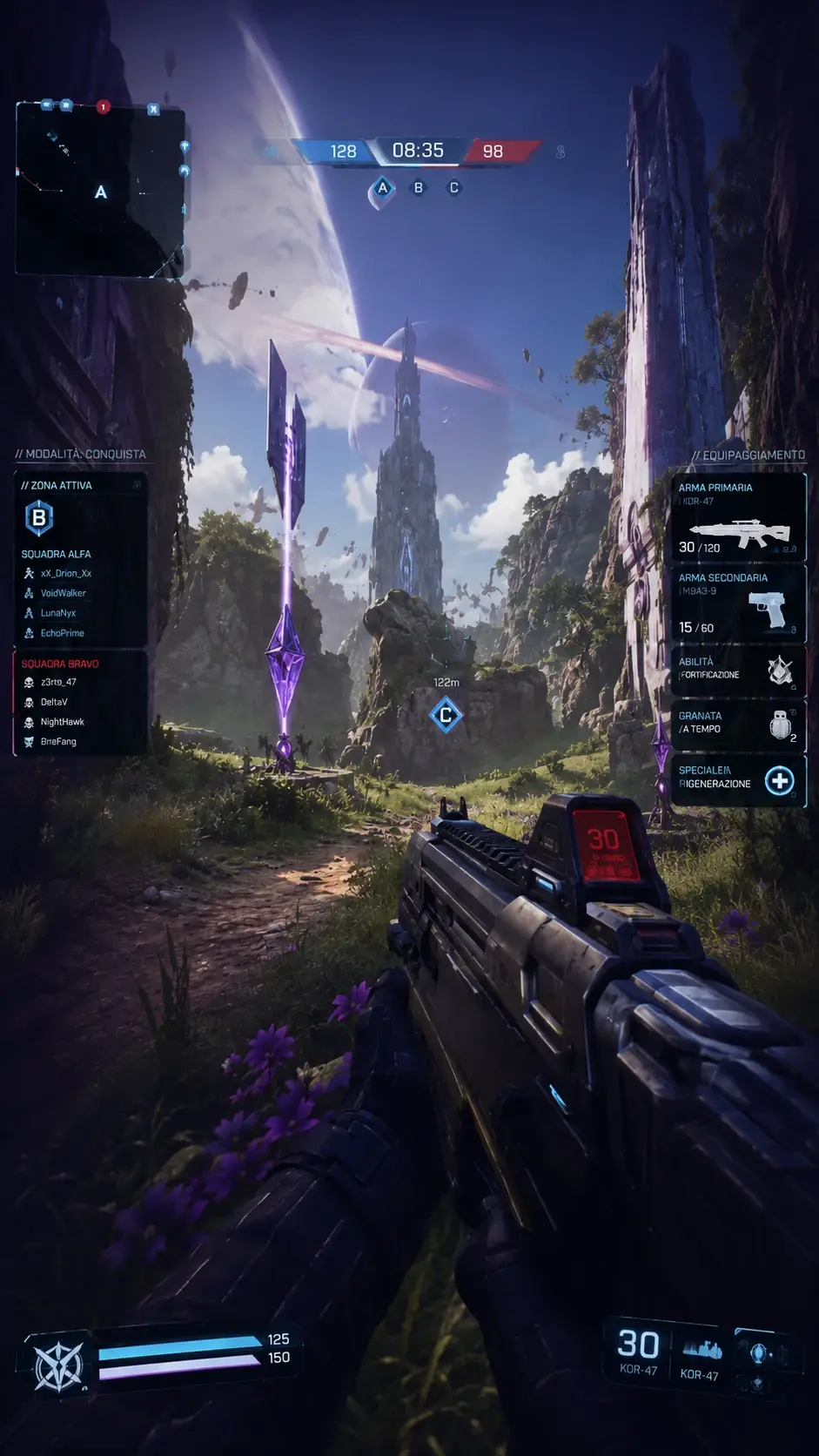
The source is 16:9 and the output is 9:16. Nothing is cut on the way: the centre keeps its proportions and the sides are progressively compressed, as if the clip had been recorded with a wider field of view.
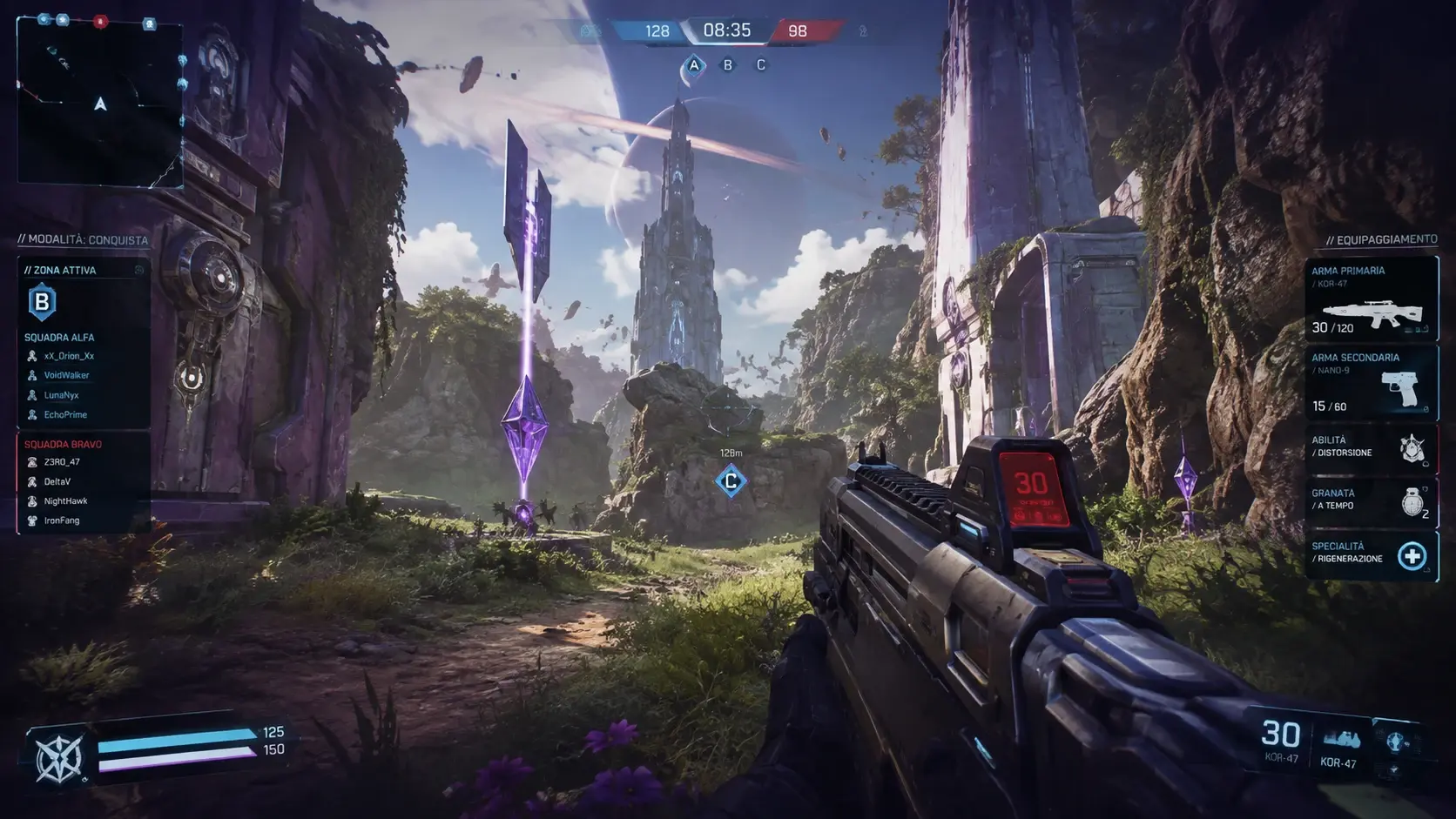
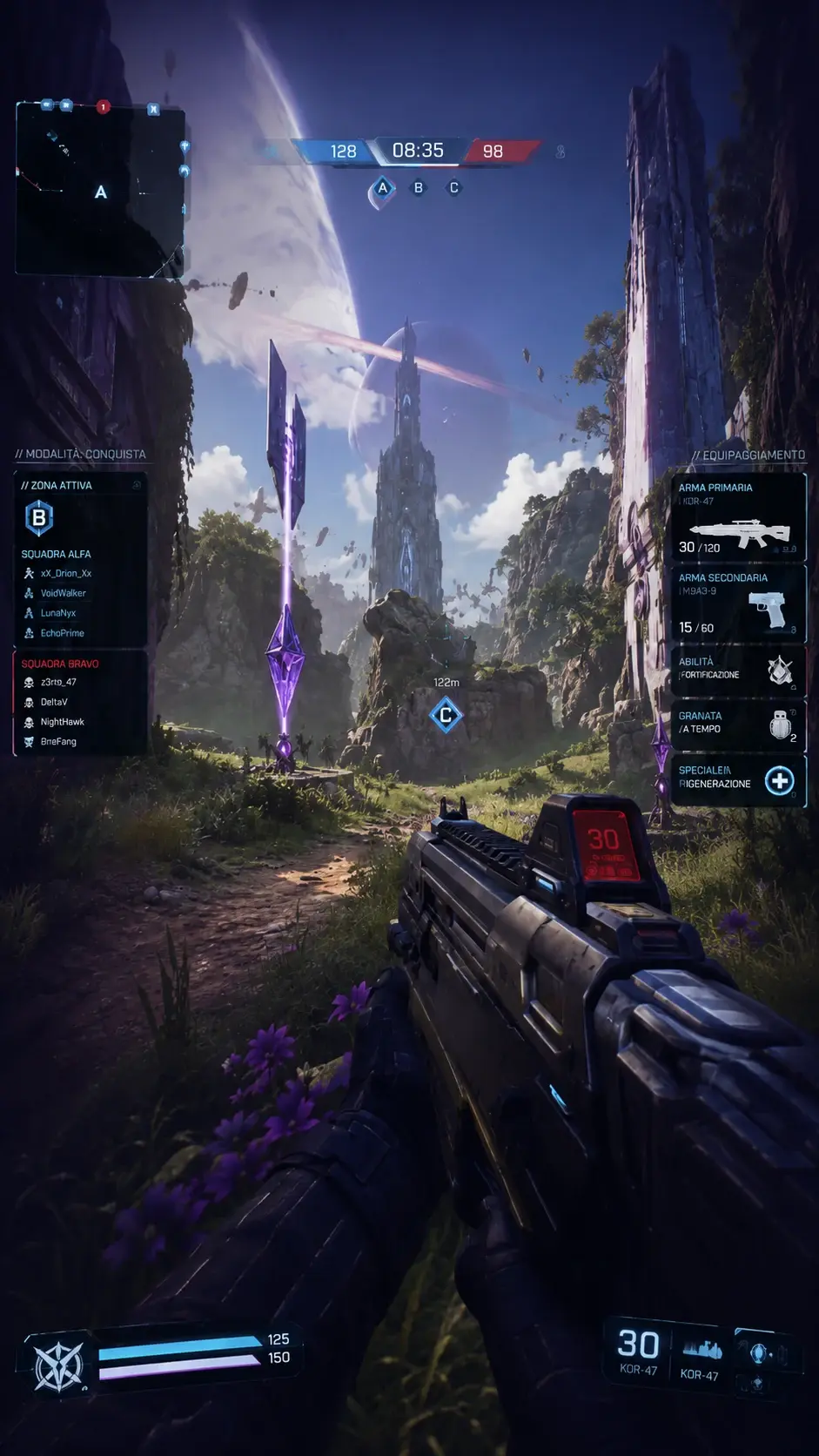
Same frame. Nothing lost. Just squeezed at the sides.
The curve
Evenly spaced source columns, repositioned by the tanh curve at strength 62.6 — the one that leaves the centre of a 1080p frame undistorted. They crowd together towards the edge, and that is exactly where the warp compresses instead of cutting. At the very edge more than fifty source columns land in one output column, which is why the renderer takes an exact average over the whole footprint instead of a single sample: it is what keeps thin HUD lines from crumbling.
Why not just crop
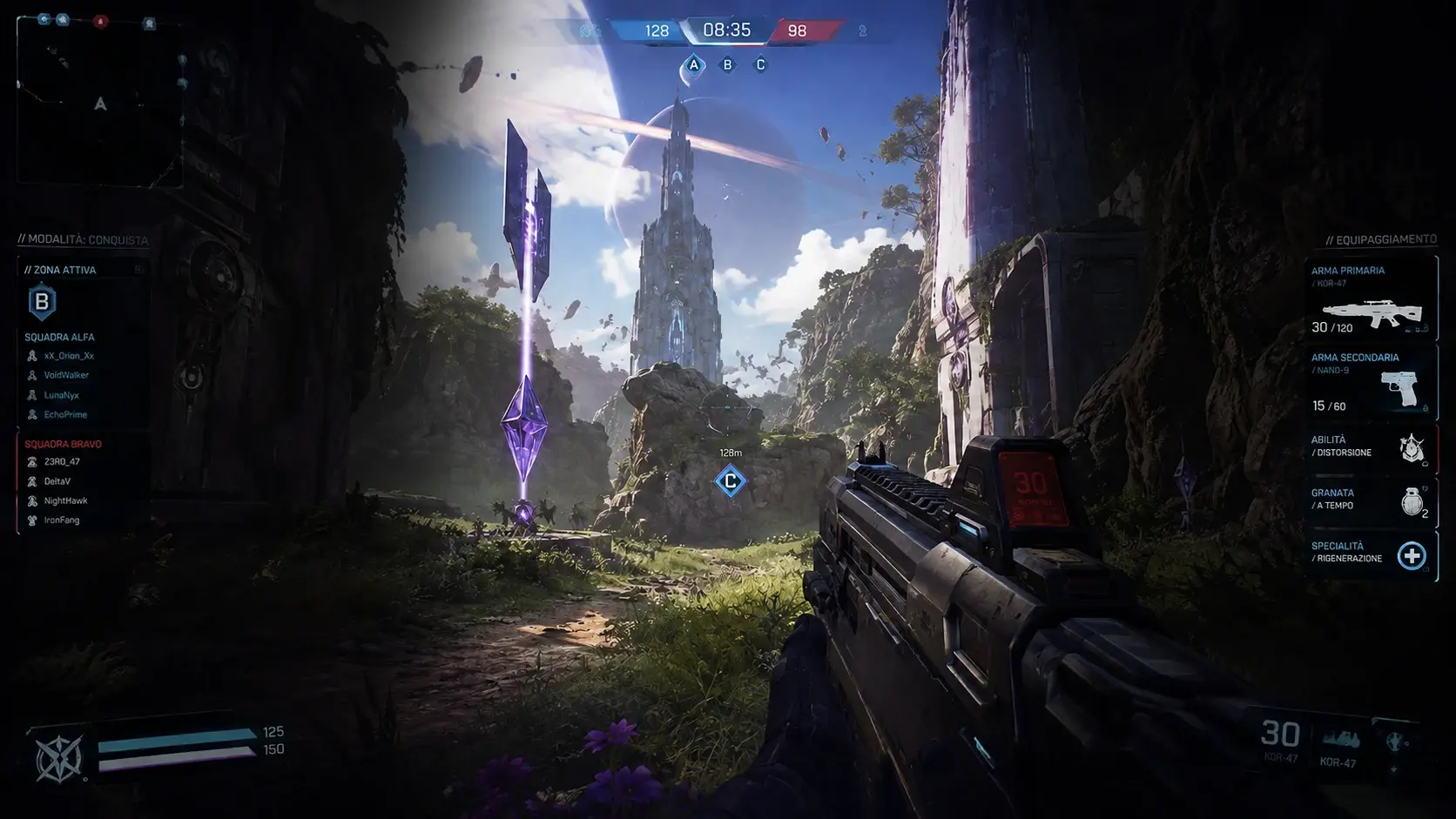
Cropping was invented for podcasts, not for gameplay
When the shot is a person talking, following them and cutting the rest works: there was nothing at the sides. In a gameplay clip, the sides are the game.
Opus Clip
Crops, then chases the face or whatever moves most.
Submagic
Crops to the centre, then lays subtitles on top.
Vidyo.ai
Crops with automatic speaker tracking.
Choppity
Crops and picks the shot for you.
YoueSport
Squeezes the sides instead of cutting them. No subject to chase, no automatic decision to argue with: the scene stays the one you played.
When cropping is fineIf there is no information at the sides of your frame — a webcam, a talking head, a game with no peripheral HUD — cropping is the right call, and YoueSport offers it anyway, along with fit on a blurred background. The difference is that you decide instead of having it decided for you: the warp is the starting point because on gameplay losing 68% of the frame is almost never what you want.
UI regions
An element squeezed too thin goes back to full size
The warp keeps everything, but near the edge it compresses hard. Draw a polygon around the minimap or the killfeed and YoueSport composites it onto the vertical frame undistorted, cut from the untouched source — even from a part of the picture a crop would have thrown away.
Any shape, not just rectangles
Three or more vertices, with the feather computed on the real shape. A slanted killfeed stays a slanted killfeed.
With a time range
A region can appear only when it is needed, and it can freeze what it showed at one exact moment: a killfeed line stays readable after it has scrolled away.
Normalised coordinates
Set them once and they survive a change of preset or of source resolution.
Magnetic snapping
A dragged edge snaps to the canvas centre, to the safe zone or to another region. Pulling away from it costs exactly the snap threshold, not twice as much.
No generative AINo invented backgrounds, no outpainting, no content you did not record. Every pixel of the export comes from a pixel of your clip: that is a positioning choice, not a technical limit.
Safe zones
In red, the area TikTok’s own interface covers.
The editor knows where TikTok puts its buttons
Exporting at 1080×1920 is not enough: every platform draws captions, an action column and a bottom bar on top of your video. Safe mode fits the content inside the rectangle that is actually visible and fills the margins with a blurred copy of the frame, so the screen stays full and nothing letterboxes.
Clears the caption, the action column on the right and the bottom bar.
- top
- 130 px
- bottom
- 483 px
- left
- 44 px
- right
- 140 px
Canvas 1080×1920. These are constants to keep tuned, not guaranteed measurements: platforms move their own controls often and these numbers have to follow.